NetWorker: How to Upgrade NetWorker and Best Practices Prior to Upgrade
Summary: How to Upgrade or Install NetWorker and Best Practices before Upgrade. Use the Solve Procedure Generator for the step-by-step process.
Instructions
Use the Procedure Generator:
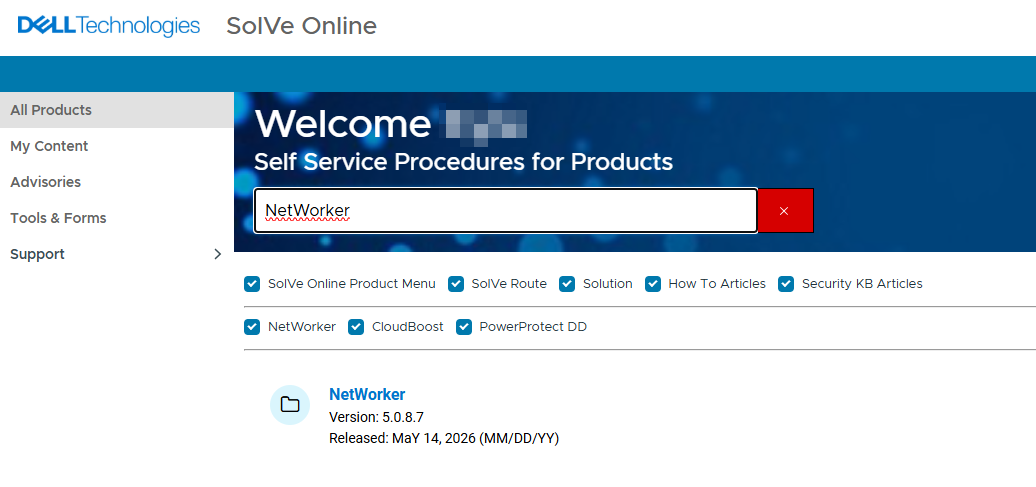
The SolVe Home Page or SolVe Desktop combines the procedure generators of all Dell products into one application. It is at the best place to start for all Dell procedures to upgrade.
Since every machine and environment is a little different, follow the 'SolVe' NetWorker Procedure Generator. It is a useful tool for an install or upgrade. Install it on any Windows machine, a Laptop, or Desktop is fine. It installs a small executable.
Ensure that you activate it for Free and chose the NetWorker package from the list. Solve generates a procedure tailored to your needs. Select the 'Upgrade' option and answer all the questions about your environment. Step-by-step instructions are provided to help accomplish your upgrade.
To download go to the NetWorker page to download the correct upgrade version of your NetWorker product. Go to the Solve Procedure Generator at: SolVe Home Page (Log in required) or you can download the Tool > SolVe Desktop.
Upgrade the hosts in a data zone in the following order:
- NetWorker server
- NetWorker Management Console (NMC) Server or NetWorker Web User Interface (NWUI) Server
- Only applicable if these are separate from the NetWorker server.
- All NetWorker storage nodes
- NetWorker clients and application modules
TIPS for Upgrading:
- Download the latest NetWorker software directly from the Dell NetWorker Drivers & Downloads product support page (A valid Dell support account is required)
- Extract it to a commonplace in your LAN that is accessible from each of the machines that requires an upgrade. This assures that the same version is used everywhere.
- Upgrade each machine manually. Alternatively use 'The NetWorker Software Administration Wizard' to push your upgrade to numerous machines simultaneously.
The following tips should aid in ensuring a smooth upgrade:
Installation Guide:
Follow the instructions in the Installation Guide. The Installation and Update guides are found on the NetWorker home page under Manuals and Documents based on the specific version NetWorker version. See that the latest guides required for your version of NetWorker.
- For NetWorker servers, clients, storage nodes, Management Console (NMC), and Web User Interface (NWUI) servers, see the version-specific NetWorker Installation Guide.
- For NetWorker Virtual Edition (NVE), see article NetWorker Virtual Edition: How To Upgrade NetWorker Software and NVE System
- For NetWorker VMware Protection (NVP) vProxy appliances, see article NVP vProxy: How To Upgrade the NVP vProxy Appliance using nsrvproxy_mgmt
Compatibility:
Verify Compatibility. There are two types of "Compatibility", hardware and software. Whenever hardware is upgraded, software compatibility must be met. The reverse is also true, whenever software is upgraded, hardware compatibility must be met.
Hardware:
Verify your NAS, SAN, Tape Library, Data Domain DDOS, Drivers, and Firmware of any devices that NetWorker might use is updated first. Verify that they are compatible with the new NetWorker or Module versions.
Software:
Verify Compatibility between operating system versions such as Windows, Linux, or UNIX on Clients and Servers. Also verify their NetWorker versions are compatible to know what order to upgrade your computers. Also verify VMware versions if used. It is best to verify compatibility with databases and software modules for Exchange, SQL, NMM, Oracle, SAP, NMDA, VMware, Azure, and AWS as well.
Software Compatibility:
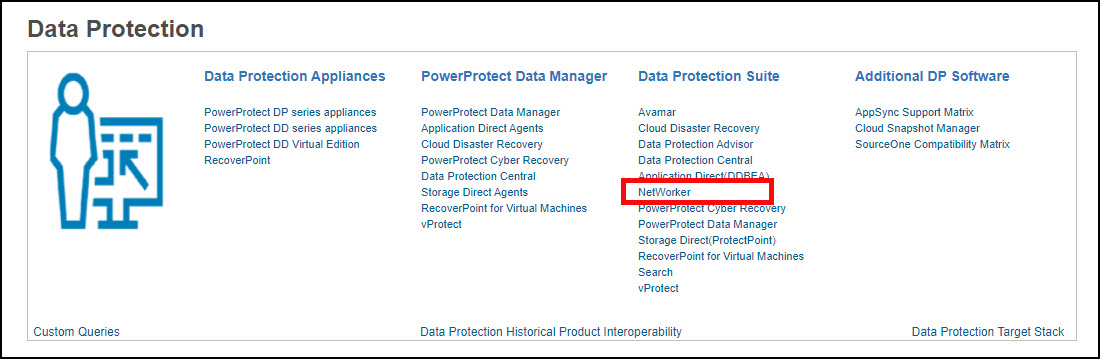
See the Online Compatibility Guide in the E-Lab Navigator (Log in required). Select the Data Protection and Availability Solutions by selecting > See more. NetWorker is listed under the Data Protection Suite.
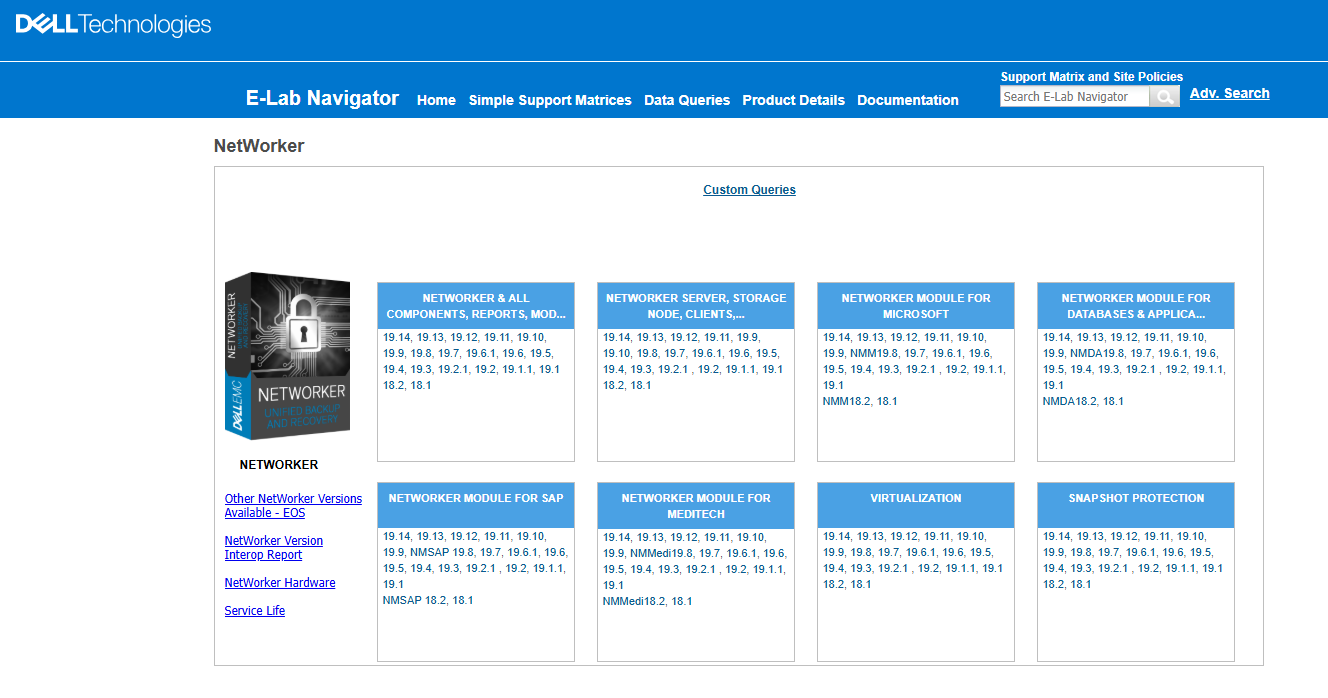
The NetWorker compatibility matrix is presented, select the NetWorker version planned for upgrade to see the full compatibility details:
Snapshots:
For NetWorker systems that are configured as Virtual Machines (VM), perform a virtual machine snapshot prior to performing the upgrade. This allows reverting to the snapshot if any critical issue observed during or after the upgrade.
Bootstrap:
This is for the NetWorker Server upgrade only. A good practice on any upgrade would be to perform a Server Protection backup job and collect the bootstrap save set details. This helps with performing a NetWorker Disaster Recovery (nsrdr) is required.
Perform a Server backup using the Server Protection policy:

Collect the bootstrap save set details from an Administrative Command Prompt (Windows) or root SSH session (Linux)
mminfo -B
nve:~ # mminfo -B
      date     time       ssid        volume                     device                                access info
       06/19/26 10:02:24  3463636208  nve.amer.lan.dddefault.001 ddve01-bkp.amer.lan_Default_DD_Device ddve01.amer.lan:/nve/Default_DD_Device
       06/20/26 10:00:14  2993960430  nve.amer.lan.dddefault.001 ddve01-bkp.amer.lan_Default_DD_Device ddve01.amer.lan:/nve/Default_DD_Device
       06/21/26 10:00:14  2608170862  nve.amer.lan.dddefault.001 ddve01-bkp.amer.lan_Default_DD_Device ddve01.amer.lan:/nve/Default_DD_Device
       06/22/26 10:00:18  2239158514  nve.amer.lan.dddefault.001 ddve01-bkp.amer.lan_Default_DD_Device ddve01.amer.lan:/nve/Default_DD_Device
       06/23/26 10:00:28  1920477820  nve.amer.lan.dddefault.001 ddve01-bkp.amer.lan_Default_DD_Device ddve01.amer.lan:/nve/Default_DD_Device
       06/24/26 10:00:14  1601797102  nve.amer.lan.dddefault.001 ddve01-bkp.amer.lan_Default_DD_Device ddve01.amer.lan:/nve/Default_DD_Device
       06/25/26 10:00:17  1199230321  nve.amer.lan.dddefault.001 ddve01-bkp.amer.lan_Default_DD_Device ddve01.amer.lan:/nve/Default_DD_Device
       06/26/26 10:00:15  3917225711  nve.amer.lan.dddefault.001 ddve01-bkp.amer.lan_Default_DD_Device ddve01.amer.lan:/nve/Default_DD_Device
Procedure Generator:
Use the 'SolVe' NetWorker Procedure Generator. It is a Best Practice tool for an install or upgrade. Go to the SolVe home page (Log in required) select the 'Upgrade' option and answer all the questions about your environment. The SolVe procedure generator provides tailored instructions to help with the upgrade.
Licensing:
Licensing is always important to think about before an upgrade. License enabler codes are required in advance when upgrading using the same hardware, installing over the prior version, or changing hardware or operating system.
You can call the Dell Licensing hotline at 800-782-4362 or email them at licensing@dell.com.
Dependencies:
For NetWorker servers, clients, storage nodes, Management Console (NMC), and Web User Interface (NWUI) servers, see the version-specific NetWorker Installation Guide:
- NetWorker 19.12.x (and earlier) NetWorker, NMC, and NWUI servers required Java Runtime Environment (JRE) 1.8.x, or NRE 8.0.x versions
- NetWorker 19.13.x (and later) NetWorker, NMC, and NWUI servers require Java Development Kit (JDK) 17, or NRE 17.0.x versions
- NetWorker: Runtime Environment (NRE) Releases
- NetWorker Runtime Environment (NRE): Introduction and Installation
Additional OS and package-specific dependencies are detailed in the version-specific NetWorker Installation Guide.
Upgrade Software:
- Extract it to a common place in your LAN that is accessible from each of the machines that are to be upgraded. This assures that the same version is used everywhere.
- Upgrade each machine manually. Alternatively use 'The NetWorker Software Administration Wizard' to push your upgrade to numerous machines simultaneously.
Use the Latest Software.
Use the Latest software visions for NetWorker and all Modules.
End of life dates are detailed in the "EMCSoftwareReleaseandEndofServiceLifeNotifications" attachment in article Dell End-of-Life Product List for Converged Infrastructure and Storage